Monday, October 24, 2011

Booklets

How to save as a file - exporting illustrations as jpgs - do this for all illustrations - high resolution.

Saving our files with printing marks - make sure all artboards are the right size - file --> save as.
research - 6 pages - technique 1 - up to 12 - tcnique 2 - up to 12 - save as pdf. If there are extras you don't want, make sure to delete them before you save
press quality - marks and bleeds - select all printer marks. use document bleed settings. Then hit create.
At the end, we combine all the pdfs into adobe acrobat pro - file --> create --> combine files into a single pdf.

Monday, October 17, 2011

if areas of detail are destroyed by the smudging, return detail - details like remembering to paint within lines - showing different opacities of brushes - show a demo on editing your brushes

Changing A3 image to A5

Keep A3 document - file --> export - then save as jpg - this is because it compresses all of the layers into one. This is also recognised easily by photoshop. Remember, when you export, it takes from the edge of the image. Remember to have a background.
Remember that this picks up everything - even those outside the artboard - so delete everything from background.
Import into photoshop, edit image size, save as A5 148 x 210 with 3 mm bleed, then when we place into illustrator, it fits perfectly onto page.
This keeps the size small.

Photoshop brushes

Moving between photoshop and illustrator. Brusheezy - good for pattern brushes
Using a photoshop pattern nto fill a shape in illustrator - place in image from photoshop, send to back, select figure and background, and make clipping mask. This keepsw background image in the shape. PRoblem - if I hover over, you see the size of the original image - is often going to make the file very big.
Or - can do the other way around, and bring the opbject into photoshop - select vecto outline, give a low stroke weight, copy and move into photoshop - keep as smart object - this keeps the vector qualities - can scale.
Hit inverse, delete backgroun - now I can move this smart object layer without the pattern being a problem.
Photoshop brushes - can combine 2 together to add depth - more flexible than illustrator - put in booklet how to make brushes! Go into window brushes - can go and manipulate any that you like, take into brush and give it more bristles? etc change shape, change flow etc
Tips - soft brushes, fill in light first, then move to darker areas.
Use dodge and burn tool - dodge can lighten areas -can choose midtones, highlights etc - can alter strength. Burn tool does the opposite.
Can change brightness in the image with curves - this effects the whole image

Monday, October 10, 2011

Need start of document by next week

Gradient mesh


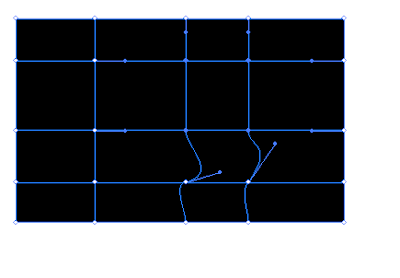
Gradient mesh - framework that we move gradient on top ofd
Decide how many mesh points you want - use mesh tool - jusat above gradient -
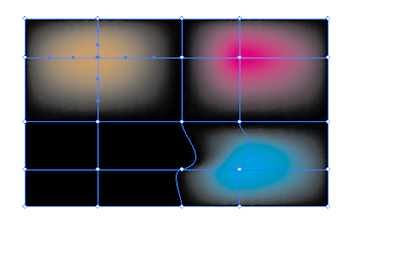
apply mesh tool in several areas, doesn't look like much until we apply colour. Can change shape of mesh with white arrow.

Select anchor point and apply colour, gives a gradation of colour - should blend smoothly.
Mesh tool can also be applied to a line, but you don't have as much control - hover mesh tool over line and then pull it, and play with colours etc.

Monday, October 3, 2011

Rendering skin - tutorials

http://www.imaginefx.com/02287754332606896693/tutorial.pdf